Requisitions Email Notifications
Purpose
Explains how users are notified via email once their submitted requisitions have received full authorization and are ready for processing by the appropriate department.
How to set your email in the IMS-OS
- To ensure you receive notifications, follow these steps:
Once logged in, click the Manage
 button in the Navigation bar, then navigate to the Personal tab.
On the Personal Edit page, go to the General section.
Locate the Email field and enter a valid work email into the email box.
Once completed, click Close Settings
 at the bottom left hand of the page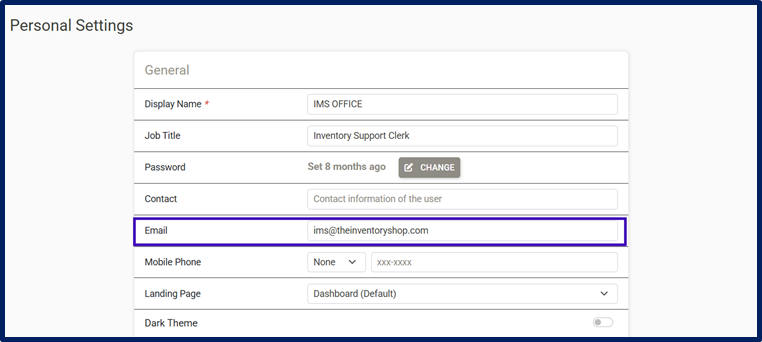
Receiving Emails for Fully Authorized Requisitions
- After completing and updating your requisition:
Click the Request Authorization
 button
The system will send the authorization request to the designated manager(s).
Once all required managers have approved of the requisition, you will receive email confirmation.

Things to Know
A valid email MUST be set up on your user account in the IMS-OS to receive notifications.
Emails are only sent after all required authorizations have been completed.